Canva has officially acquired UK-based 2D motion design tool Cavalry and AI advertising optimization startup MangoAI. After previously integrating Affinity's photo, vector, and layout tools, Canva is now pushing hard into motion editing, advancing its vision of becoming a 'Full-Stack Creative OS'. For designers and creators, mastering Canva’s latest capabilities in 2026 is no longer optional—it’s a competitive necessity.
📸 Meet Magic Studio | Canva's AI Tools
1. Why Canva Is Challenging Adobe After Effects
Cavalry has long been recognized as a powerful node-based 2D motion graphics tool, an accessible alternative to After Effects. Praised for enabling procedural animation without Adobe’s steep subscription costs, it’s already been adopted by tech giants like Google and Meta.
Canva’s acquisition brings three major transformations:
- 🎬 In-App Motion Graphics Editing: Create animated social media videos and ad banners directly inside Canva
- 🤖 MangoAI Ad Optimization: AI automatically generates and tests high-performing ad creatives
- 🔗 End-to-End Workflow Integration: Seamlessly transition from static design → motion → ad deployment—all within Canva

📸 Canva Launches 'Magic' AI Tools For Its Design Software's ...
2. 5 Canva AI Features You Can Use Right Now
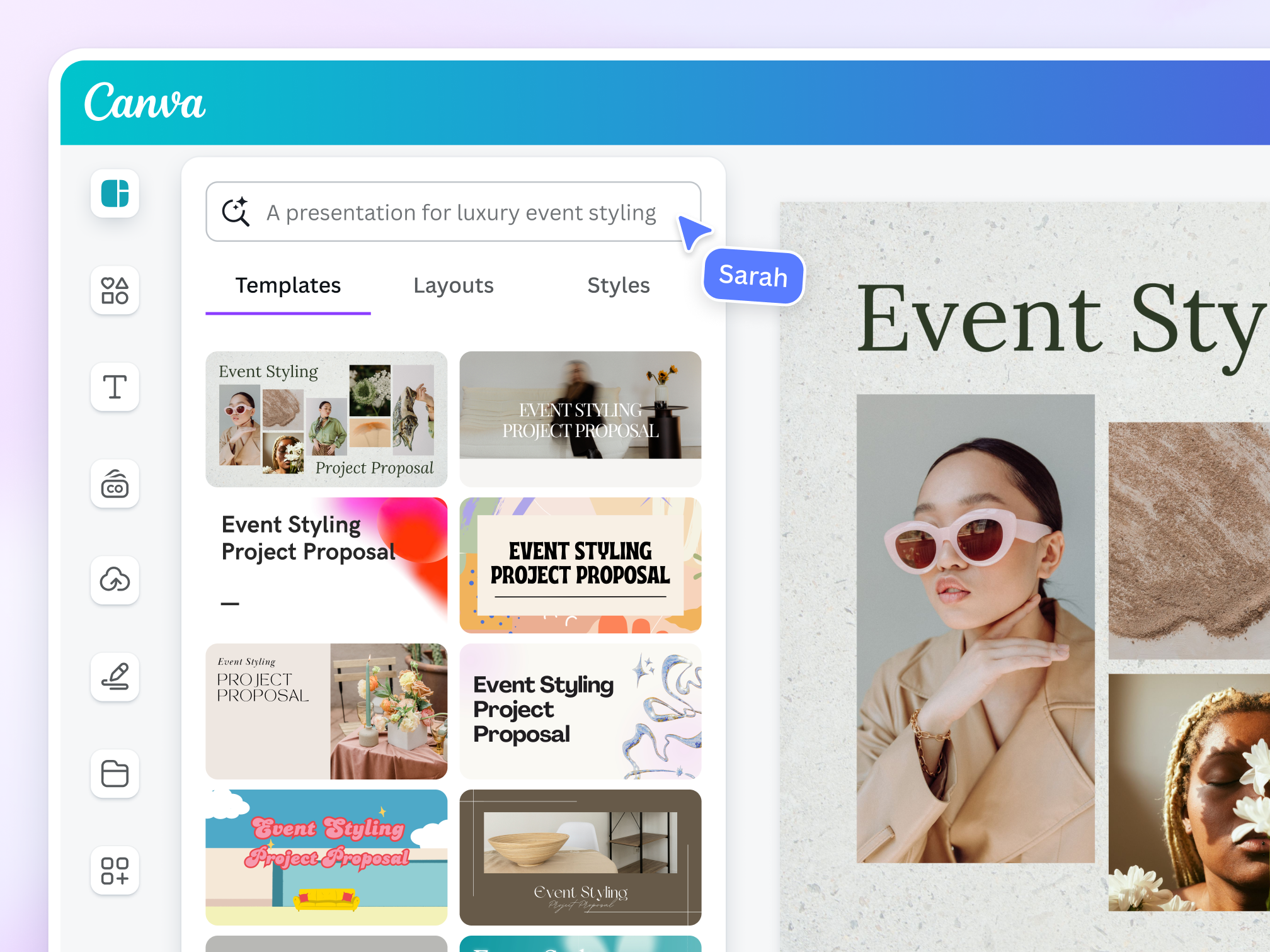
📸 Magic Design™: Free Online AI Design Tool | Canva
① Magic Design — Get a Complete Draft in Seconds
- Enter your topic in the search bar on Canva’s homepage (e.g., "Coffee Shop SNS Promotion").
- Click "Magic Design" → upload a photo (optional).
- AI instantly generates 10–20 ready-to-use templates.
- Pick your favorite → just edit the text and you’re done!
Pro Tip: Be specific in your prompts—e.g., "bright and sophisticated vibe, targeting women aged 20–30"—for higher-quality results.
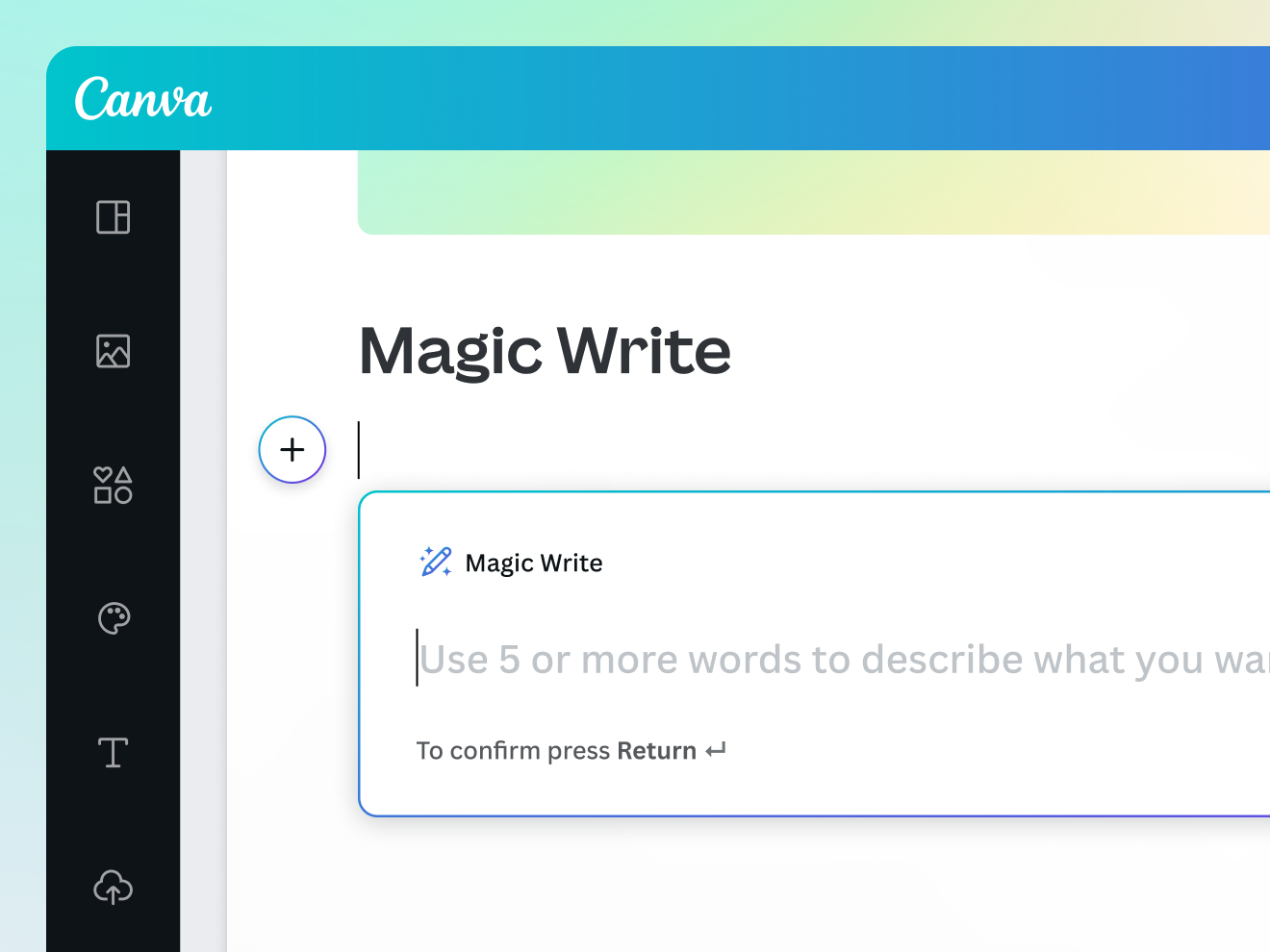
📸 Magic Write: AI Text Generator & AI Writer | Canva
② Magic Write — Automate Captions & Copywriting
- Select a text box → open the "Apps" sidebar → "Magic Write".
- Choose tone (professional, friendly, witty) and enter your topic.
- Generate Instagram captions, product descriptions, or presentation scripts instantly.
Real Example: Input: "New espresso launch → Instagram caption → include emojis, friendly tone" → AI returns 3 polished caption options.
③ Background Remover — Remove & Replace Backgrounds
- Upload an image → click → select "Edit Image" at the top.
- Click "Background Remover" (Pro feature, processes in under 1 second).
- Add Canva's built-in patterns, gradients, or your own photos as the new background.
E-commerce Use: Remove product photo backgrounds → place on white or lifestyle backgrounds → create 5 variations for detail pages in under 10 minutes.
④ Resize & Magic Switch — One Design, All Formats
- After finishing a design, click "Resize" at the top.
- Select target formats: Instagram Story (9:16), YouTube Thumbnail (16:9), Facebook Ad (1:1), etc.
- Click "Continue" → AI automatically adjusts layout for each format.
Efficiency Hack: Turn one content card into versions for Instagram Feed, Story, Facebook, and LinkedIn—save up to 70% of your time!
⑤ Brand Kit — Automate Brand Consistency
- Go to "Brand" → "Add Brand Kit" in the left menu.
- Upload your logo, set brand colors (HEX codes), and select fonts.
- All future designs will automatically apply your brand styles.
Team Collaboration: Share the kit across your team to ensure perfect visual consistency and drastically reduce review cycles.
3. 5 Pro Tips from Expert Canva Users
- 🎯 Use Shortcut Keys: R (Rectangle), C (Circle), T (Text), Del (Delete), Ctrl+G (Group). Boost speed by 2x with keyboard over mouse.
- 📁 Organize with Folders: Create project-specific folders → share directly with clients using the "Share" button. No more email attachments.
- 🔒 Lock Your PDFs: When exporting proposal PDFs, select "Non-editable" to prevent unauthorized changes.
- 📊 Turn Presentations into Videos: Export your deck as an auto-advancing MP4 slideshow → upload directly to YouTube.
- 🌐 Publish Websites Instantly: Launch portfolios or event pages via "Publish as Website"—no coding needed, live URL in seconds.
4. Canva vs Adobe — Which Tool Should You Use?
| Scenario | Recommended Tool |
|---|---|
| Quick social media or marketing content | ✅ Canva |
| Team collaboration & brand consistency | ✅ Canva |
| Complex graphic compositing, photo retouching | ✅ Adobe Photoshop |
| Professional typography or print design | ✅ Adobe InDesign |
| Professional-level motion graphics (current) | ✅ After Effects |
| Motion graphics (after Cavalry integration) | 🔜 Canva (Coming Soon) |
Conclusion: Choose Canva for speed, cost-efficiency, and team workflows, and Adobe when you need pixel-perfect precision and print-grade quality. Most professional designers now use both tools in tandem.
5. Canva’s 2026 Roadmap — Things to Know Early
- 🎬 Cavalry Motion Editing Integration: Create social-ready motion graphics directly in Canva (expected first half of 2026).
- 📣 MangoAI Ad Optimization: AI generates A/B test variations automatically, streamlining performance marketing.
- 🖥️ Deeper Affinity Integration: Expect direct access to Affinity Photo and Designer features within Canva.
댓글
댓글 쓰기