📸 GitHub Copilot Workspace: Welcome to the Copilot-native ...
What is GitHub Copilot Workspace?
In February 2026, GitHub Copilot Workspace was officially opened to enterprise teams. Going far beyond simple code autocompletion, it's now an AI-powered, agentic environment that handles the entire development workflow—from idea (issue) to planning, coding, testing, and pull request (PR) creation. The promise of going "from idea to code in minutes" has become a reality.
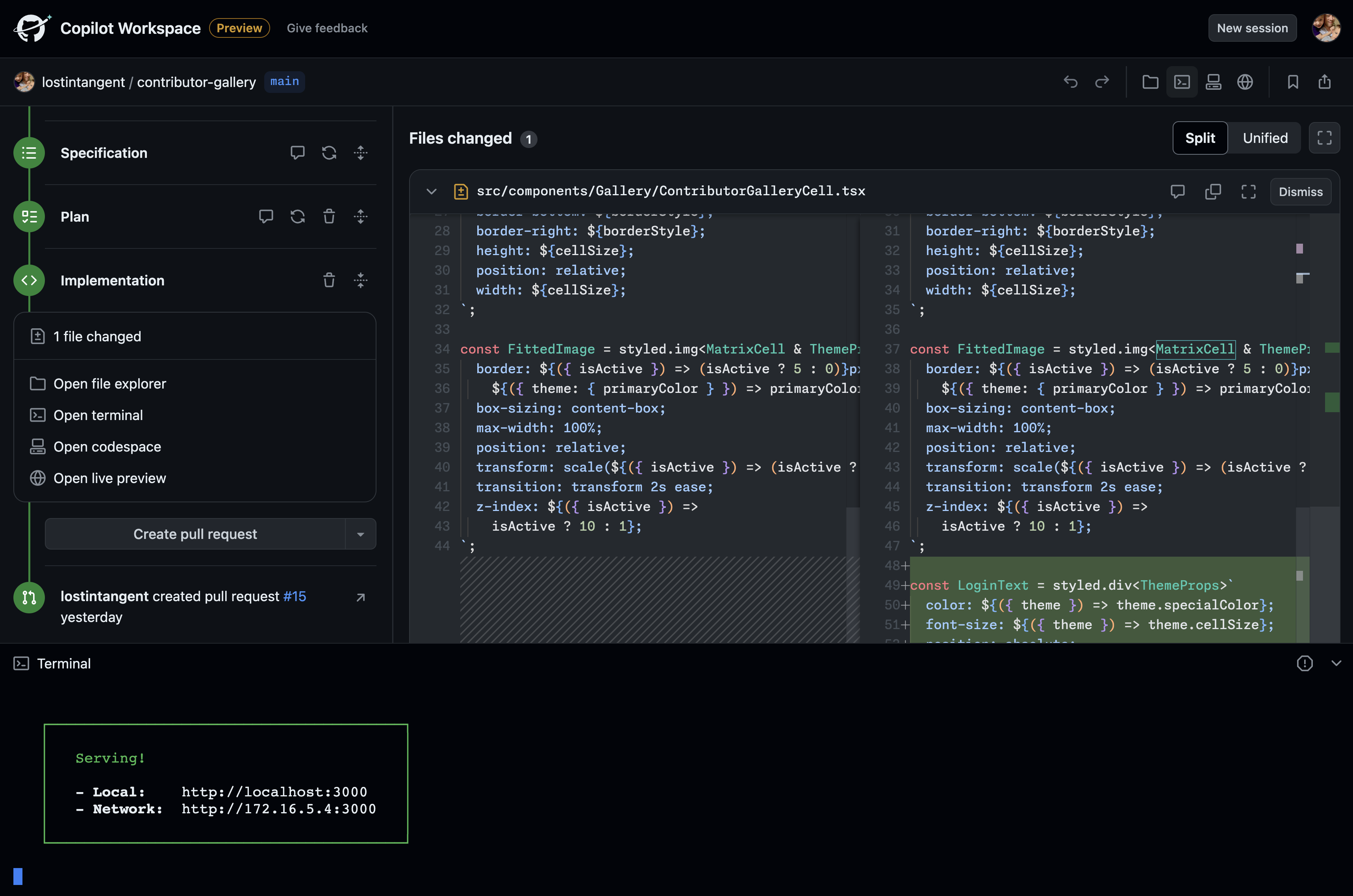
📸 Copilot Workspace is GitHub's take on AI-powered software ...
🧠 Core Concepts of Copilot Workspace
While the original Copilot acts like a pair programmer, suggesting code as you type, Copilot Workspace functions as an autonomous agent—a self-directed entity that independently executes tasks. The key workflow is as follows:
- Issue/Task Input: Enter a GitHub issue, PR comment, or natural language command
- Plan Generation: AI drafts an implementation strategy and lists target files
- Plan Review/Edit: Developer reviews and edits the plan if needed
- Code Implementation: Copilot executes code changes based on the plan
- Test Execution: Tests automatically run in the built-in terminal
- PR Creation: Changes are committed, and a pull request is automatically opened
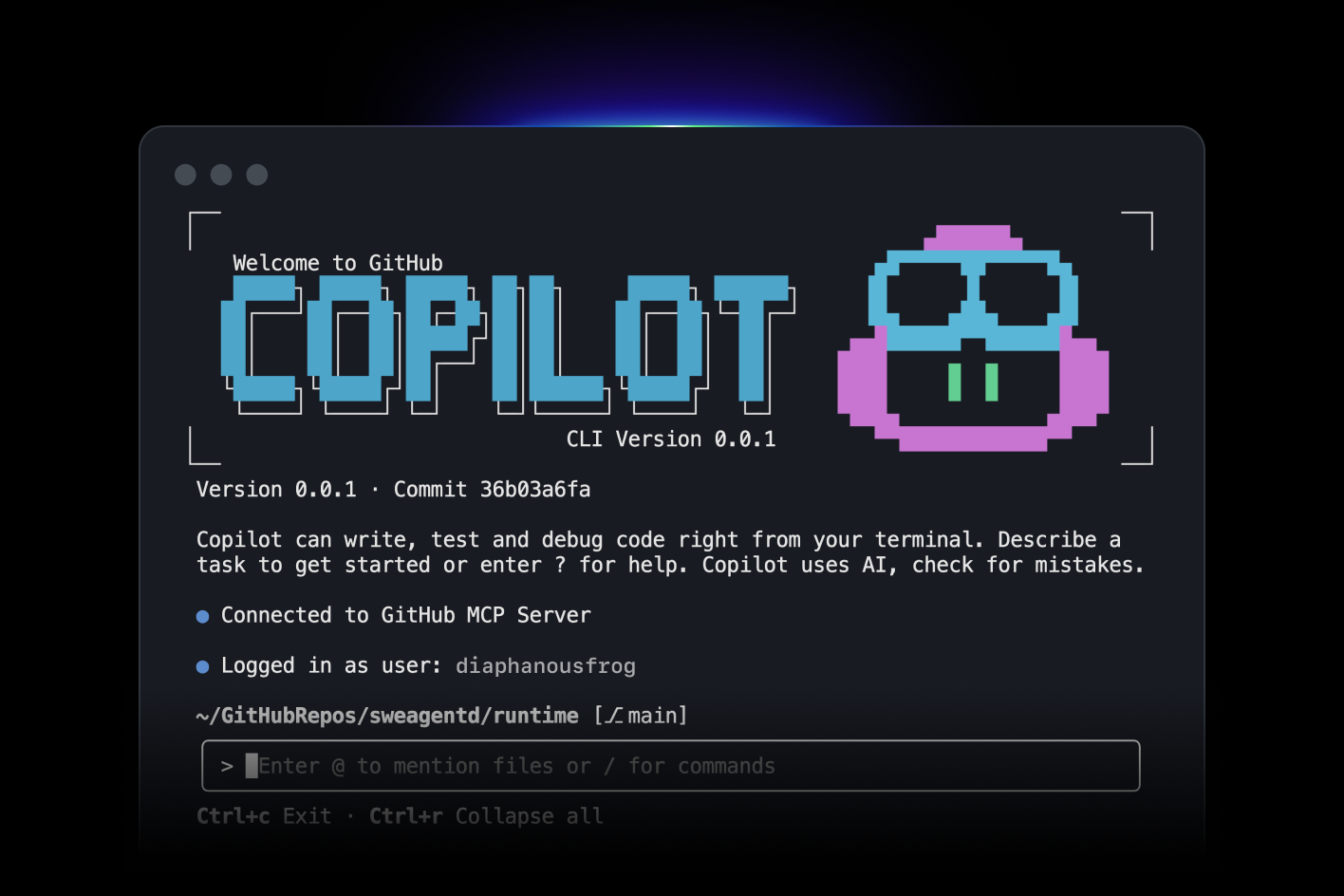
📸 GitHub Copilot · Your AI pair programmer · GitHub
⚡ In-Depth Look at Key Features
📸 GitHub Copilot Introduces Agent Mode and Next Edit ...
1. Agent Mode
Copilot Workspace’s Agent Mode is now available across all platforms—including VS Code, github.com, and GitHub Mobile. The agent understands the entire repository and can edit multiple files simultaneously.
// Example of automatic code generation from a GitHub issue
// Issue: "Add avatar upload feature to user profile page"
// Copilot Workspace automatically:
// 1. Creates components/ProfileAvatar.tsx
// 2. Creates api/upload-avatar.ts
// 3. Modifies existing ProfilePage.tsx
// 4. Updates test files
// 5. Creates a PR with a detailed description
2. Multi-File Editing
Implementing a single feature often requires changes across several files. Copilot Workspace maintains full repository context, ensuring consistent updates across frontend, backend, and test components.
- Code Graph Analysis: Automatically tracks import chains and type dependencies
- Consistency Enforcement: Aligns naming, styling, and patterns with existing codebase standards
- Conflict Detection: Gives early warnings about potential merge conflicts during parallel work
3. Built-in Terminal & Test Execution
You can run code and tests directly inside Copilot Workspace. The loop of "write code → check terminal → fix errors" is fully contained within the workspace—eliminating context switches.
- Run npm/yarn scripts
- Execute unit and E2E tests
- When errors occur, AI automatically analyzes causes and suggests fixes
4. Copilot CLI Agent Skills
The Copilot CLI, updated in January 2026, now includes Agent Skills and advanced context management. Complex tasks can now be triggered using natural language commands directly in the terminal.
$ gh copilot suggest "Run all tests and report only failed ones"
$ gh copilot explain "What’s the time complexity of this function?"
$ gh copilot agent "Refactor: Extract duplicate code into a utility function"
🏢 Enterprise Features: EMU Support
With the February 2026 release of Enterprise Managed Users (EMU), enterprises can now securely adopt Copilot Workspace in managed environments.
- Centralized Access Control: IT admins can manage team-level access to Workspace
- Audit Logs: Full traceability of all AI-generated actions
- Data Isolation: Ensures enterprise code is never used for model training
- SSO Integration: Seamlessly connects with existing corporate identity providers
📊 Copilot Workspace vs. Traditional Development: A Comparison
| Task | Traditional Approach | Copilot Workspace |
|---|---|---|
| Issue → Code | 2–4 hours | 10–30 minutes |
| Bug Fix | 30 min–2 hours | 5–15 minutes |
| Refactoring | 1–3 days | Several hours |
| Test Writing | 30 min–1 hour/file | Automatically generated |
| PR Description | 15–30 minutes | Automatically generated |
🚀 Practical Guide: 5 Best Practices
1. Clear Issue Descriptions Are Key
Copilot Workspace builds its plan based on your issue text. Instead of vague terms like “fix bug,” write specific descriptions like: “Fix bug where user account doesn’t lock after 3 incorrect password attempts.” The more precise the input, the better the output.
2. Review the Plan Thoroughly
Before writing any code, Copilot presents a detailed plan (Specification). Correcting direction at this stage is much more efficient than modifying already-generated code.
3. Break Tasks into Smaller Chunks
Divide large features into smaller, manageable tasks. This makes each change easier to review and simplifies rollback if errors occur.
4. Adopt a Test-Driven Approach
Write a failing test first, then instruct Copilot: "Write code to make this test pass." This leads to higher-quality, goal-oriented implementation.
5. Code Review Is Still Human-Owned
AI-generated code must still be reviewed by a human. Copilot Workspace is a productivity tool—not a hands-off, autonomous deployment system.
💡 Getting Started with Copilot Workspace
If you're on a GitHub Copilot Individual, Business, or Enterprise plan, you can start using Copilot Workspace today:
- Go to any issue page on github.com
- Click the "Open in Workspace" button next to the issue title
- Review AI-generated plan, then click "Implement"
- Inspect resulting code and create the PR
The software development paradigm is shifting in 2026. Copilot Workspace isn’t here to replace developers—it’s designed to automate repetitive coding tasks so you can focus on more strategic problems. In this new era of agentic AI, the teams who master this tool first will gain a decisive competitive edge.
댓글
댓글 쓰기