Visual Studio 2026 Complete Guide — February Update AI Features, Diagnostics Improvements & Real-World Tips
In February 2026, Microsoft rolled out the latest update for Visual Studio 2026. This isn’t just another bug fix—it brings major enhancements in AI-powered assistance, debugging tools, and core development workflows that fundamentally transform the coding experience. Notably, deeper GitHub Copilot integration has significantly accelerated real-world coding speed. In this guide, we’ll walk you through all the key updates—no fluff, just the essentials.
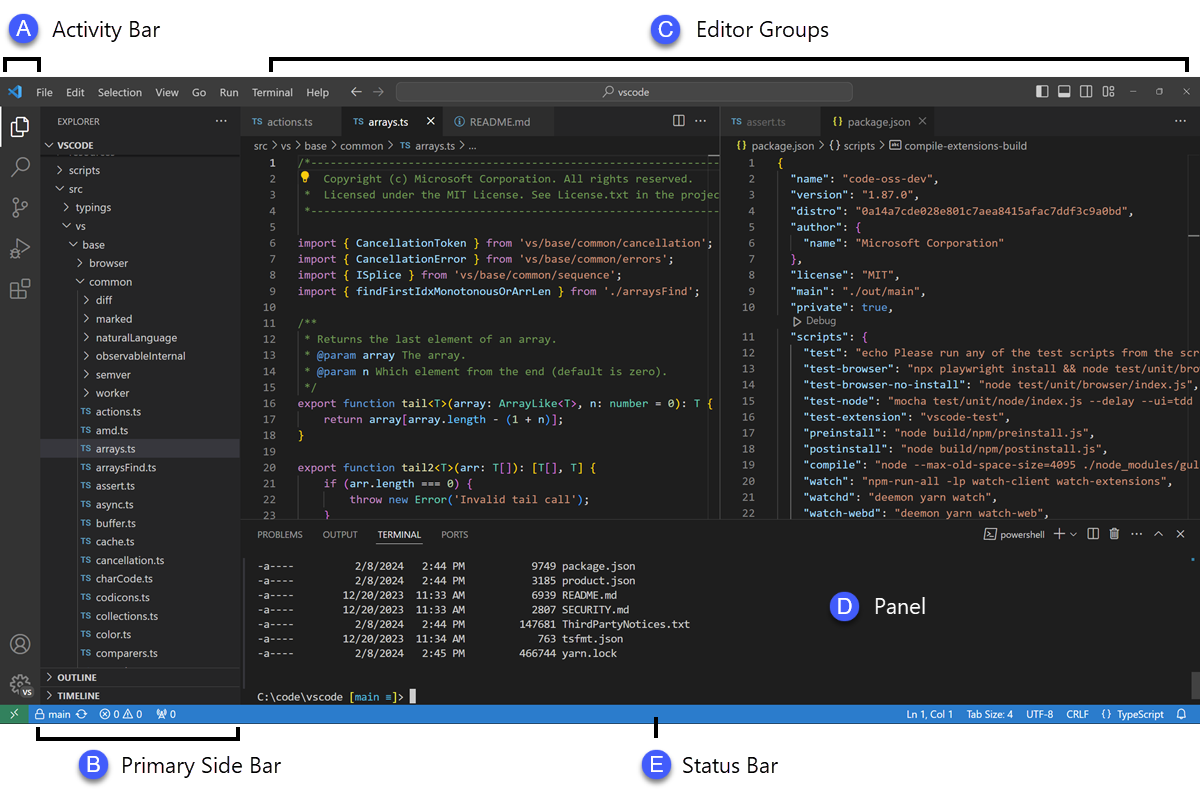
📸 User interface
🔑 Key Changes in the February 2026 Visual Studio Update
Three standout improvements define this release:
- 30% faster AI code completion — Copilot suggestions appear quicker and understand context better than ever
- Enhanced diagnostic tools — AI now explains runtime errors and suggests concrete fixes
- Improved Hot Reload stability — Works more reliably in .NET 10 projects
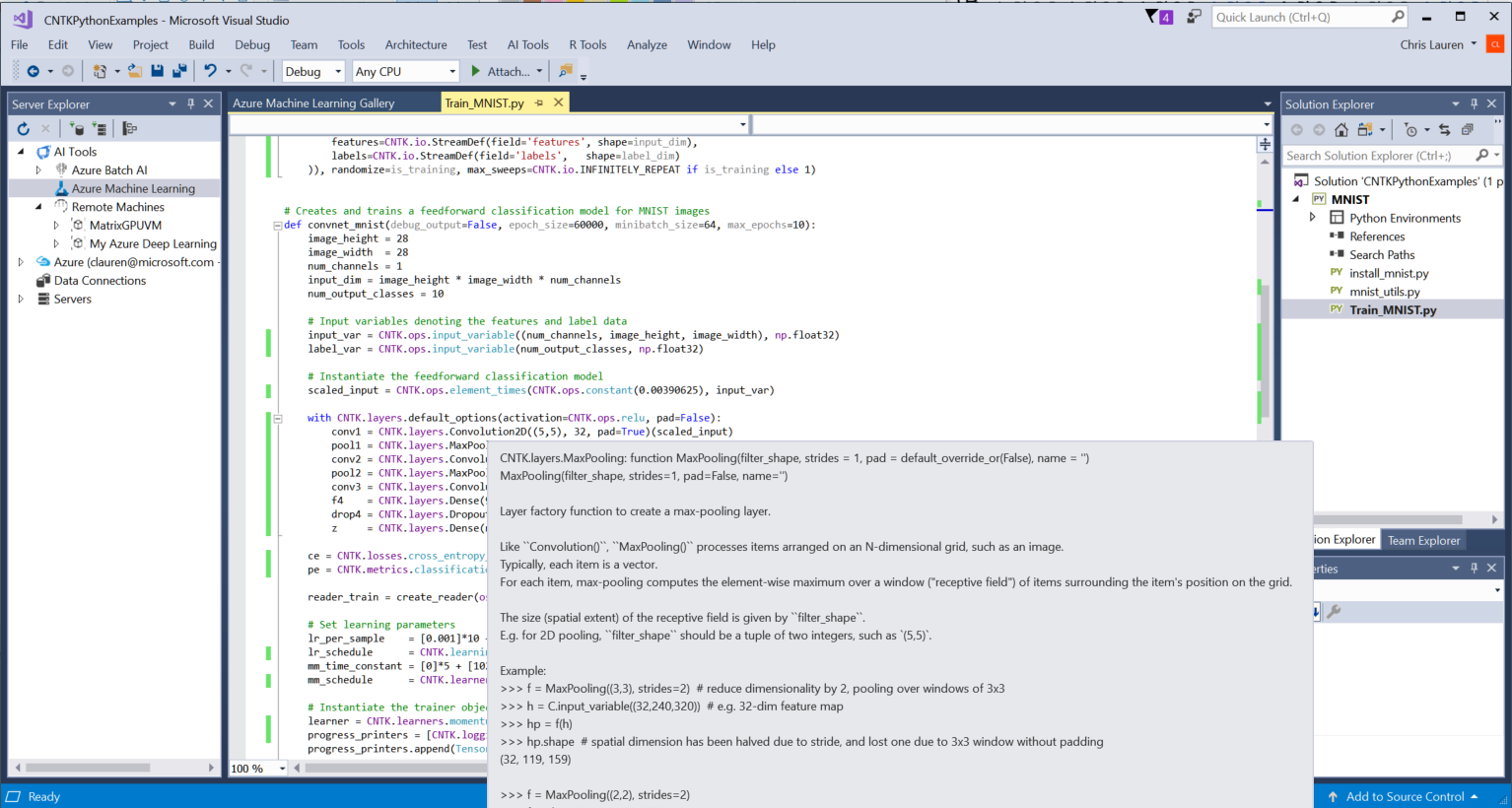
📸 Microsoft Visual Studio Tools for AI - Visual Studio Marketplace
🤖 Mastering AI Assistant Features

📸 GitHub Copilot Chat - Visual Studio Marketplace
1. Copilot Chat with Multi-File Context
Previously, Copilot Chat only understood the currently open file. Now, it can reference your entire solution. For example, asking:
// Input in Copilot Chat
"Find all files using UserService in this project and
point out where null checks are missing"
Copilot scans your full solution and highlights relevant files—especially valuable in large-scale projects.
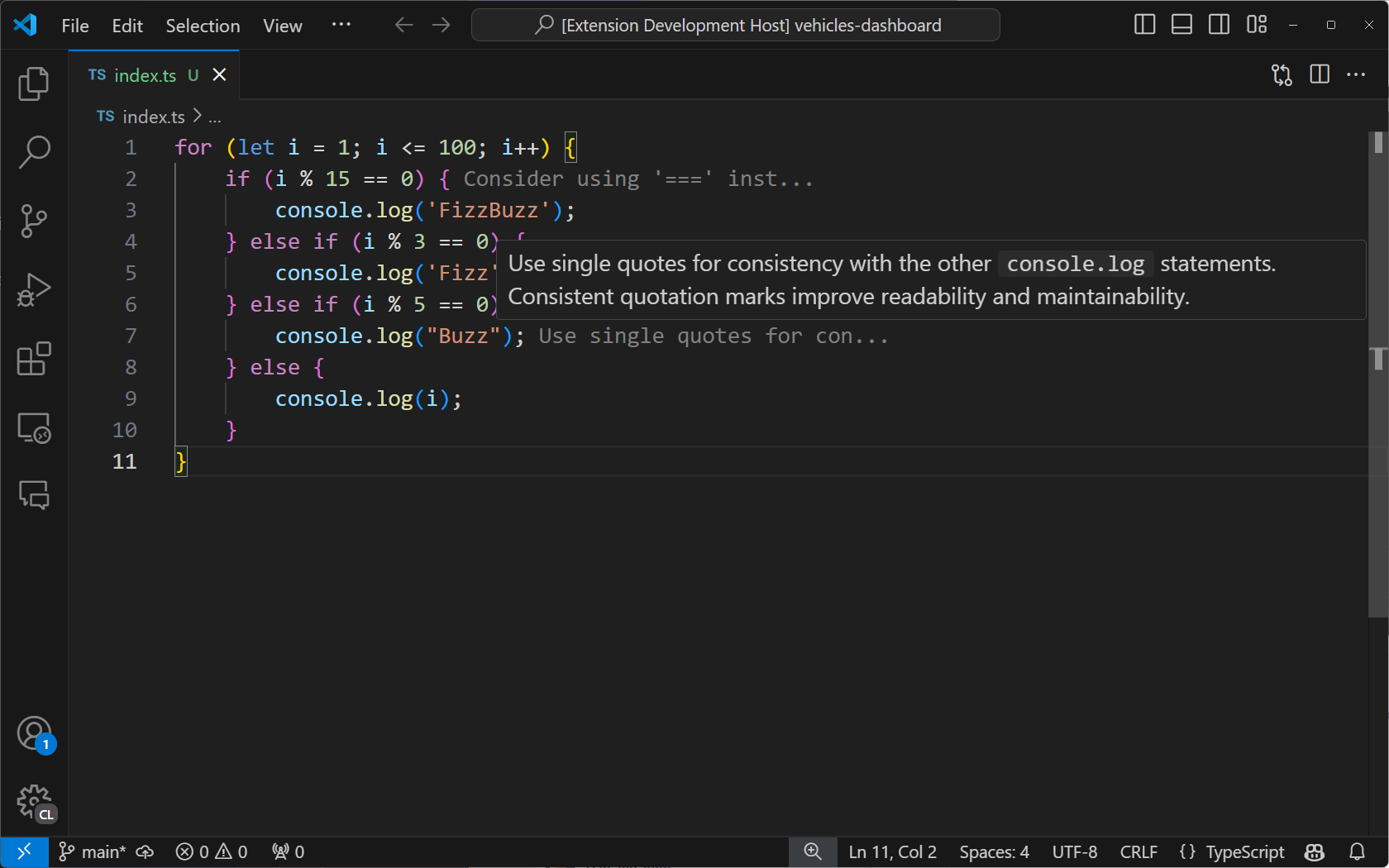
📸 Tutorial: Generate AI-powered code annotations by using the ...
2. Inline AI Code Review
Select any code block and press Alt+/ to get an instant AI-powered review. It checks for security vulnerabilities, performance issues, and readability concerns.
// Example: AI review for selected code
public string GetUserData(string userId) {
    return database.Query($"SELECT * FROM users WHERE id = {userId}");
    // AI: ⚠️ SQL Injection vulnerability detected! Use parameterized queries.
}
3. Auto Documentation
Hover over a method or class and press Ctrl+Alt+D to auto-generate XML documentation comments.
/// <summary>
/// Retrieves user data by ID.
/// </summary>
/// <param name="userId">Unique ID of the user to retrieve</param>
/// <returns>User data as a string</returns>
/// <exception cref="ArgumentNullException">Thrown when userId is null</exception>
public string GetUserData(string userId) { ... }
🔧 Enhanced Diagnostics — Debugging Made Easy
AI-Powered Error Explanations
When a build error occurs, an 💡 icon appears next to the message. Click it and AI explains:
CS0246: The type or namespace name 'UserModel' could not be found.
🤖 AI Explanation: The 'MyApp.Models' namespace may be missing from your using directives or requires a NuGet reference. Found a matching class at 'Models/UserModel.cs'. Recommend adding: using MyApp.Models;
Runtime Analysis
During debugging, if a NullReferenceException occurs, AI analyzes the call stack to explain which variable is null and why. This reduces debugging time—often by half or more.
⚡ Workflow Optimization Tips
Boost Productivity with Quick Setup
1. Optimize Keyboard Shortcuts
Tools > Options > Environment > Keyboard
- Accept AI inline suggestion: Tab
- Next AI suggestion: Alt+]
- Open Copilot Chat: Ctrl+Alt+I
2. AI-Powered Solution Explorer Search
Type natural language queries into the Solution Explorer search bar. Enter "login-related files" and it automatically finds LoginController, AuthService, and more.
3. Multi-Cursor + AI
Select multiple lines and apply a Copilot suggestion simultaneously across all positions—ideal for bulk refactoring.
🆕 .NET 10 + Visual Studio 2026: A Powerful Combo
Key improvements when using .NET 10 with Visual Studio 2026:
- Native AOT Profiling: Profile memory and CPU usage even in AOT-compiled apps
- MAUI 14 Debugger: More stable debugging on iOS and Android emulators
- ASP.NET Core OpenAPI 3.1: Swagger UI now opens directly inside Visual Studio
🎯 Pro Tips — Shortcut Keys to Supercharge Development
| Feature | Shortcut | Description |
|---|---|---|
| Copilot Chat | Ctrl+Alt+I | Open AI chat window |
| Inline AI Review | Alt+/ | Instant code feedback on selection |
| Auto Documentation | Ctrl+Alt+D | Auto-generate XML comments |
| Global Search | Ctrl+Shift+F | Search across entire solution |
| Refactoring Menu | Ctrl+R, Ctrl+R | Rename, extract, and more |
| Hot Reload | Alt+F10 | Apply code changes during debug |
📌 Conclusion — Should You Update?
Let’s be honest: Yes, strongly recommended. If you're working primarily with .NET or C#, this update dramatically increases Copilot’s usefulness. The enhanced diagnostics speed up error resolution, and auto-documentation makes code quality management much easier.
If you're already on Visual Studio 2026, head to Help > Check for Updates to install it immediately!
댓글
댓글 쓰기